

1.0 About this
The goal of this article is to be a base for a complete installarion of GOsa2, it will be used by future articles on what maters with integrating with others services.
2.0 What GOsa2 means?
GOsa2 is the constrict form for GOnicus System Administration. From author’s site gosa-project.org
A mighty System-/Config-management frontend using LDAP as a backend. It is able to manage POSIX, Samba, Mail, Kolab, FAX, Asterisk and many more services.
3.0 Prerequisites
- A minimal install of CentOS e RedHat 5.3 (This guide is in Portuguese only :( )
- Apache 2.2.x
- PHP 5.2
- OpenLDAP
- Repository yum EPEL
4.0 Instaling pre-requisites
As said before, I’m assuming that you already have an installation of CentOS or Red Hat, therefore, I’ll be covering the system requisites to get a functional GOsa2.
4.1 Installing the yum EPEL repository
rpm -ivh http://virtualxp.org/downloads/epel-release-5-3.noarch.rpm
4.2 Setting the repository for GOsa2
Go to /etc/yum.repos.d and create the file GOsa2.repo with your favorite text editor. File: /etc/yum.repos.d/GOsa2.repo
[GOsa]
name=GOsa Repository
baseurl=http://oss.gonicus.de/pub/gosa/redhat
enabled=1
gpgcheck=0
4.3 Setting the repository for PHP 5.2
GOsa2 needs the PHP 5.2 to run, however, there’s no PHP 5.2 on official repository. With that said, we need to set up a third party repository. For this article I’ll be using the repository from Utter Ramblings. It’s a nice and reliable repo, you can use it with no fear. Go to /etc/yum.repos.d and with your favorite text editor create a file called utterramblings.repo. File: /etc/yum.repos.d/utterramblings.repo
[utterramblings]
name=Jason's Utter Ramblings Repo
baseurl=http://www.jasonlitka.com/media/EL$releasever/$basearch/
enabled=1
gpgcheck=1
gpgkey=http://www.jasonlitka.com/media/RPM-GPG-KEY-jlitka
This repo already have a version of Apache 2.2.x (2.2.14 at this momment) that we’ll be using.
4.4 Installing OpenLDAP Server
We’ll use the offical version (which means the one into the repository or Media). To accomplish this, execute the following command:
yum install openldap openldap-clients openldap-servers
5.0 Installing GOsa2 via yum
With the prerequisites satisfied, continue the installation of GOsa2
There are a couple of plugins availiable from GOsa2 respository, doing a search over it, it is possible to get an idea of which of them you really need to install. Install those that suit to your environment.
yum search gosa
WARNING: Avoid to install the package gosa-desktop, as it will install Gnome and X.org as dependence.
Below are the packs that we will use in this article. Feel free to alter it.
yum install gosa-schema.noarch gosa-plugin-systems.noarch gosa-plugin-sudo.noarch gosa-plugin-squid.noarch gosa-plugin-samba.noarch gosa-plugin-rolemanagement.noarch gosa-plugin-pureftpd.noarch gosa-plugin-mail.noarch gosa-plugin-log.noarch gosa-plugin-ldapmanager.noarch gosa-plugin-dns.noarch gosa-plugin-dhcp.noarch gosa-plugin-connectivity.noarch gosa-plugin-addressbook.noarch gosa-help-en.noarch gosa.noarch
5.1 Edit PHP (php.ini) params to suit GOsa2
To GOsa2 run happy, it’s necessary to alter 2 parameters in file /etc/php.ini. Edit it and save it.
Before:
- expose_php = On
- magic_quotes_gpc = Off
After:
- expose_php = Off
- magic_quotes_gpc = On
5.2 Making sure the services start at boot time
chkconfig --levels 35 ldap on
chkconfig --levels 35 httpd on
6.0 Setting OpenLDAP to suit GOsa2 needs
With all those work we have done so far, now it’s a critical time, but simple to do. Will be necessary to suit OpenLDAP to talk to GOsa2, this means showing the right schemas to OpenLDAP. Make a backup copy from the original slapd.conf file.
cd /etc/openldap
cp slapd.conf slapd.conf.orig
To generate the cn=Manager password hash.
slappasswd -h {SSHA}
New password:
Re-enter new password:
{SSHA}Nag4FWwXLoGO/WpdpFJUlMVCBYwB94wt
The result will be the hash from the entered password, this case I used “fogonacaixadagua”. Keep this hash, we will use it soon.
Now, make your /etc/openldap/slapd.conf look like the one below: File: /etc/openldap/slapd.conf
include         /etc/openldap/schema/corba.schema
include         /etc/openldap/schema/core.schema
include         /etc/openldap/schema/cosine.schema
include         /etc/openldap/schema/dyngroup.schema
include         /etc/openldap/schema/inetorgperson.schema
include         /etc/openldap/schema/java.schema
include         /etc/openldap/schema/misc.schema
include         /etc/openldap/schema/nis.schema
include         /etc/openldap/schema/openldap.schema
include         /etc/openldap/schema/ppolicy.schema

include /etc/openldap/schema/gosa/samba3.schema
include /etc/openldap/schema/gosa/pureftpd.schema
include /etc/openldap/schema/gosa/gofon.schema
include /etc/openldap/schema/gosa/gosystem.schema
include /etc/openldap/schema/gosa/goto.schema
include /etc/openldap/schema/gosa/gosa-samba3.schema
include /etc/openldap/schema/gosa/gofax.schema
include /etc/openldap/schema/gosa/goserver.schema
include /etc/openldap/schema/gosa/goto-mime.schema
include /etc/openldap/schema/gosa/trust.schema
include /etc/openldap/schema/gosa/dnszone.schema
include /etc/openldap/schema/gosa/gosa_custom.schema

pidfile     /var/run/openldap/slapd.pid
argsfile    /var/run/openldap/slapd.args

database    bdb
suffix      "dc=FogoNaCaixadAgua"
rootdn      "cn=Manager,dc=FogoNaCaixadAgua"

# Senha gerada pelo comando slappasswd -h {SSHA}
rootpw      {SSHA}Nag4FWwXLoGO/WpdpFJUlMVCBYwB94wt

directory   /var/lib/ldap

index entryCSN,entryUUID eq
index uid,mail eq
index gosaMailAlternateAddress,gosaMailForwardingAddress eq
index cn,sn,givenName,ou pres,eq,sub
index objectClass pres,eq
index uidNumber,gidNumber,memberuid eq
index gosaSubtreeACL,gosaObject,gosaUser pres,eq
index sambaSID eq
index sambaPrimaryGroupSID eq
index sambaDomainName eq

cachesize 100000
To copy some schemas that aren’t on schemas’ dir:
cp /usr/share/gosa/plugins/pureftpd/contrib/pureftpd.schema /etc/openldap/schema/gosa
cp /usr/share/gosa/plugins/dns/contrib/dnszone.schema /etc/openldap/schema/gosa
Create the file /etc/openldap/schema/gosa_custom.schema with the following content:
File: /etc/openldap/schema/gosa_custom.schema
#$Id: authldap.schema,v 1.8 2005/03/20 19:10:30 mrsam Exp $
#
# OID prefix: 1.3.6.1.4.1.25981
#
# Attributes: 1.3.6.1.4.1.25981.1.1
#
# Depends on: gosa.schema and cosine.schema

attributetype ( 1.3.6.1.4.1.25981.1.1.1 NAME 'gosaMailHome'
    DESC 'The absolute path to the mail message stor directory in a virtual mail setup.'
        EQUALITY caseExactIA5Match
        SYNTAX 1.3.6.1.4.1.1466.115.121.1.26 SINGLE-VALUE )

#
# Objects: 1.3.6.1.4.1.25981.1.2
#

objectclass ( 1.3.6.1.4.1.25981.1.2.1 NAME 'gosaVirtualMailAccount' SUP top AUXILIARY
    DESC 'Objectclass to mark Virtual MailAccounts for GOsa (v2.4)'
        MAY ( gosaMailHome ) )
7.0 Starting OpenLDP
With OpenLDAP server configured and the schemas on the right place, copy DB_CONFIG.example to LDAP’s dir:
cd /etc/openldap
cp DB_CONFIG.example /var/lib/ldap/DB_CONFIG
Now, you can start OpenLDAP and you can verify if it’s gonna ok.
service ldap start
Checking configuration files for slapd:  config file testing succeeded
                                                           [  OK  ]
Starting slapd:                                            [  OK  ]
8.0 Starting Apache
Apache was installed with the GOsa2. The GOsa2 package created the config file to apache, this file can be found at /etc/httpd/conf.d/gosa-apache.conf
File: /etc/httpd/conf.d/gosa-apache.conf
# Include GOsa to your web service
Alias /gosa /usr/share/gosa/html

    php_admin_flag engine on
    php_admin_flag register_globals off
    php_admin_flag allow_call_time_pass_reference off
    php_admin_flag expose_php off
    php_admin_flag zend.ze1_compatibility_mode off
    php_admin_flag register_long_arrays off
    php_admin_flag magic_quotes_gpc on
    php_admin_value upload_tmp_dir /var/spool/gosa/
    php_admin_value session.cookie_lifetime 0
    include /etc/gosa/gosa.secrets

   PHP_Fix_Pathinfo_Enable 1

     Options +ExecCGI
     AddHandler fcgid-script .php
     FCGIWrapper /var/www/php-fcgi/php-fcgi-starter .php
     include /etc/gosa/gosa.secrets
Isnt’ recommended to edit it, do it only if it’s really necessary. Time to start Apache:
service httpd start
Starting httpd:                                            [  OK  ]
9.0 Setting GOsa2 through Web interface
After starting Apache, access through of server IP.
9.1 Initial screen of GOsa2 set up
http://192.168.11.13/gosa/

Note the highlighted part on image, it’s necessary to execute the above command to GOsa2 installer know that you have control over server.
echo -n 93esjraq6baopmpchl1qsksc84 > /tmp/gosa.auth
After you executed the command, click “Next”.
9.2 Language selection

Pick up the correct one and Click “Next”.
9.3 Environment checking

If you got any error here, get back to: 5.1 Edit PHP (php.ini) params to suit GOsa2.
After all field being marked with Ok, click “Next”.
License agreement
This screen you must accept the license.
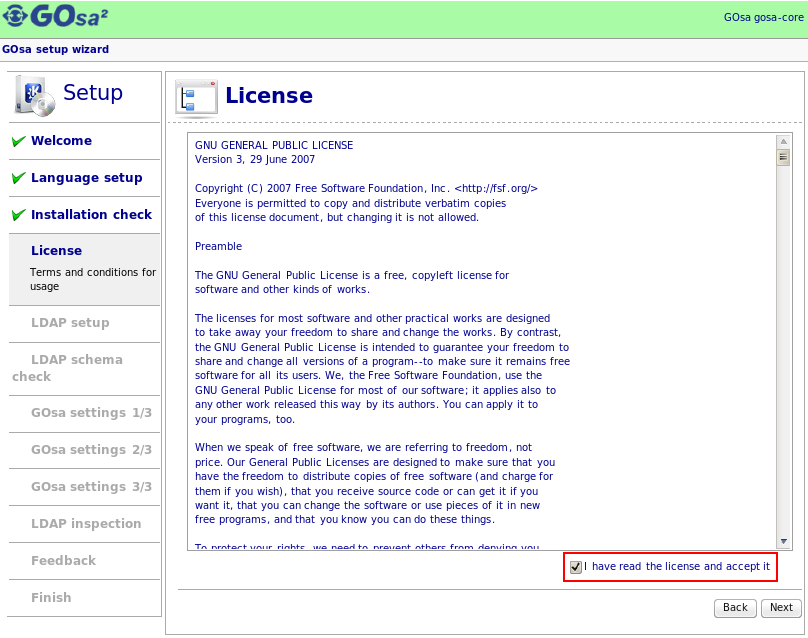 After you check it, click “Next.
9.4 LDAP Connection
Here you set the connection between GOsa2 and OpenLDAP that we configured before.
 The parts tha need to be changed are marked in 1 and 2:
- Put the conext to Manager user: “cn=Manager,dc=FogoNaCaixadAgua”
- Password hash, “fogonacaixadagua”
Click “Next””.
9.5 Schema validation
Yeah!
 Click “Next”.
9.6 Setting GOsa2 1/3
Let the default ones and click “Next”.

9.7 Setting GOsa2 2/3
Some settings to GOsa2.
 Below I’ll explain the changes done, based on the number into above picture, change them as show.
- the context that will have the Workstations info from Windows Domain.
- Timezone for GOsa2.
- Enable Copy & Paster, it’s a nice function, very interesting when you change some entry into an Organizational Unit, for example.
- Enable snapshots, they are useful to revert some bat change, for example
- Put the Manager password, “fogonacaixadagua”.
Click “Next” after you finish it.
9.8 Setting GOsa2 3/3
Last part on setting GOsa2.

- Enter your SNMP community, if you have one in your network, otherwise put ‘public’.
- To enable the SUDO config from GOsa2 Interface
Click “Next”.
9.9 Inspecting OpenLDAP
In this screen will have a full check to verify if you have some tree in LDAP, as we started from scratch, it have nothing, because of this you see a lot of “Fails”. Do not worry, soon it will be all Green ;)
To create a root object, click the button as highlighted on pic below:

After clicking “Try to create a root object” look that the things are starting to getting better :D

First click the button “Migrate”, in “Inspecting object classes in root object” then you will be redirected to the following page:

Click “Migrate”.
Getting back to LDAP Inspection page, click the unique button shown.

This time it’s to create a password for the user ‘admin’ that will log into GOsa2 interface. Enter a password, here is “fogonacaixadagua” then click “Apply”

All nice and green, as I promised you.

Time to go to the last part. Click “Next”.
9.10 Send a feedback
You are on your own.
Finnished, click “Next”.
9.11 Almost END

Download the config file to your computer and then copy it to /etc/gosa on server side, apply the permissions as shown by installer.
scp ~/temp/gosa.conf [email protected]:/etc/gosa
After, on GOsa2 server
chown root:apache /etc/gosa/gosa.conf
chmod 640 /etc/gosa/gosa.conf
Click “Next” on final step to confirm that the config file is there.
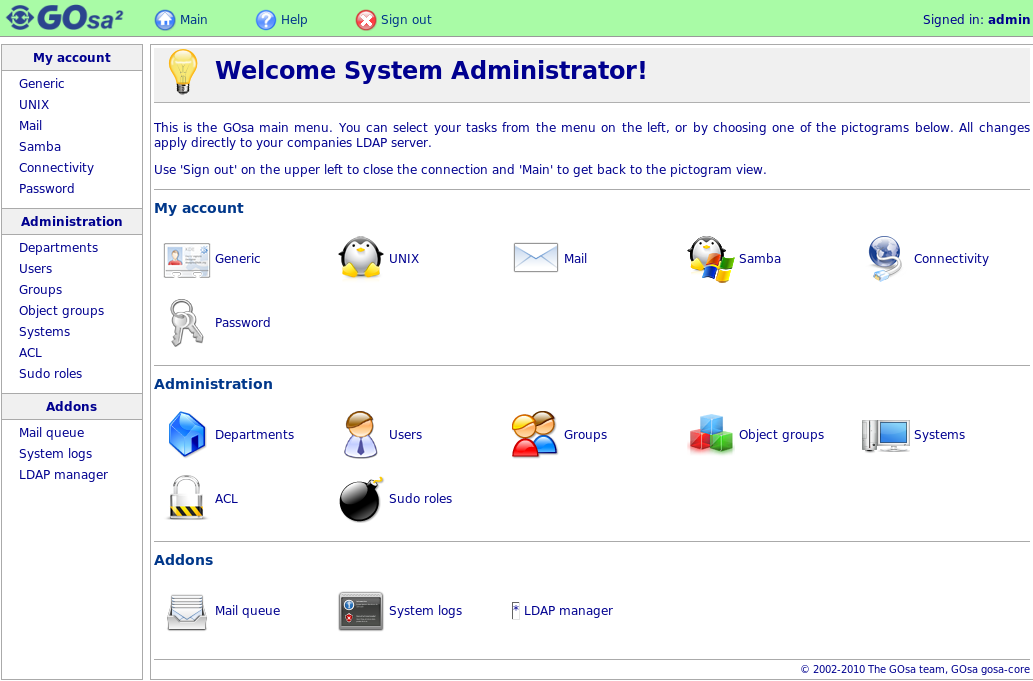
You will be awarded with the login screen, use the ‘admin’ user and the password defined in the install process to login.





Comentários
Comentários fechados para visitantes. Entre ou registre-se para comentar.
12 respostas para “How to install GOsa2 on RedHat / CentOS (rpm based)”
Can you make a howto for host based access control with sudoers in ldap? :)
[…] How to install GOsa2 on RedHat / CentOS (rpm based) […]
Thanks for that helps, I have done nearly the same.
Did you try to restrict users access to certain server IP with Gosa² ?
If you manage to do it, can you give me an indication how to ?
Hi it’s a great tuto but i have a problem. When i log with admin i have a blank page..
Its because there happen errors in the php config. Just set in the php.ini the avaliable memory to more than 32 M =)
Thanks fbihack for your solution.
I’ve been scratching my head over this for days now. Thanks!
[…] How to install GOsa2 on RedHat / CentOS (rpm based) | Fogo na Caixa dAgua (tags: LDAP gosa) […]
thanks, for your guide.
you can show me, How to install Mail Server and samba on GOs2a, Because i try other guide to install GOsa2 it work.
Did you have, How to config Samba + Ldap fail Over on CentOS 5.6?
Thanks Big Big … for your above it good and Clear.
Hi!
Thanks for your kindly comment :)
For sure I am looking forward to do a guide like that you said, but unfortunately I cannot say when, but yes, I’ll do it!
How do i go about logging users, say from Fedora, tomy centos server. I tried crating a user anthony, then went to authconfig in fedora but cannt get tolog him in..